I have described how Evernote is the centerpiece of my paperless cloud. But Evernote is far from the only tool that I use to go paperless. I have discussed many of those tools here, and today, I thought I’d talk about how I use Paper.
Not, you understand, paper, but Paper, the beautiful app made by FiftyThree. The thing I love most about Paper is its simplicity of design. It is virtual paper, nothing more, nothing less.
The app itself is free and comes with some basic drawing tools. Other tools are available as in-app purchases. I eventually purchased them all and these days, I don’t think I could live without them. The best way to describe Paper is to demonstrate some ways that I use it.
1. Storyboarding
In my day job, I make software and manage projects that produce and support software. Because of its simplicity, I use Paper to do the storyboarding for my application design. For instance, here is a page from my notebook for an application we are about to deliver. This was the original storyboarding that I sketched out, just as if it was on paper:

2. Charts and Diagrams
If you are a regular reader of these posts, you’ve probably seen some of the charts and diagrams I’ve created with Paper. For instance, you’ve probably seen this one:

I made this using the Paper app and its tools to sketch it out. I think it took me 20 minutes to sketch out that diagram using Paper.
3. Letting the kids sketch
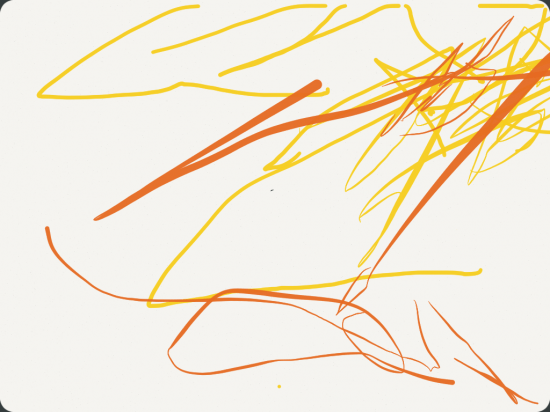
Because of all of the different tools available, and the realistic way in which they are rendered in Paper, the kids have a fun time sketching and playing with the different tools as they do. Here is something the Little Miss sketched when she was about 18 months old (she’s 25 months now).
4. Sketching my own pictures
I sometimes use Paper to do my own sketches. These are typically unrelated to storyboarding or making charts and diagrams. Sometimes, I feel like drawing. Here is an incomplete example of one such sketch that I have yet to finish, and done entirely with the tools in Paper:

(I am terrible at drawing water. But the picture itself is based on a photograph I took while in Venice, Italy in 2007.)
5. Keeping score in baseball games
I know there are apps for this, but I created a simple score card in Paper and then copy it to a new page any time I want to keep score in a game:

So how, exactly, does Paper work? As I said earlier, the app is exceedingly simple in its design. You can create notebooks, each of which can have as many pages as you like. You use the tools to sketch on the pages. You can do this with your finger, but I prefer to use a stylus. (And the stylus I use is the Bamboo Stylus.)
Here is a glimpse into my main notebook, which already has nearly 80 pages of drawings, charts, storyboards and other stuff:

You turn through the pages the same way you’d flip through the pages in a book. When you’ve selected the page you want, or add a new page, you have a set of tools you can use to create on the page:

The tools include an eraser, a fountain pen, a pencil, a marker, a fine point pen, and a paint brush. You also have a pallet and the ability to mix colors together. In addition, you can easily zoom into any part of the page to do fine or more detailed work, for instance:

All of the pages are exportable making it easy to send them to other applications.
Sending pages to Evernote
I frequently send finished pages to a notebook in Evernote. Like everything in Paper, this is easy to do.
First, you select the desired page and click the Share icon on the page:

Next, I tap the “Send Email” button and send the resulting file to my Evernote email address. The resulting note looks like this in Evernote:

These days, I use the Paper app extensively for drawings, charts, diagrams, storyboarding, or simple sketching. It is simple to use and easy to get the resulting drawings into Evernote or other applications. It has become my go-to application for any kind of sketching, drawing or other diagramming I need to do.
ETA: And as of this morning, Paper has a really cool integration with Moleskine notebooks that you should check out.
If you have a suggestion for a future Going Paperless post, let know me. Send it to me at feedback [at] jamietoddrubin.com. As always, this post and all of my Going Paperless posts is also available on Pinterest.
Last week’s post: Using Quick Notes in the New Evernote App for iOS 7.
Leave a Reply to BarrieCancel reply